
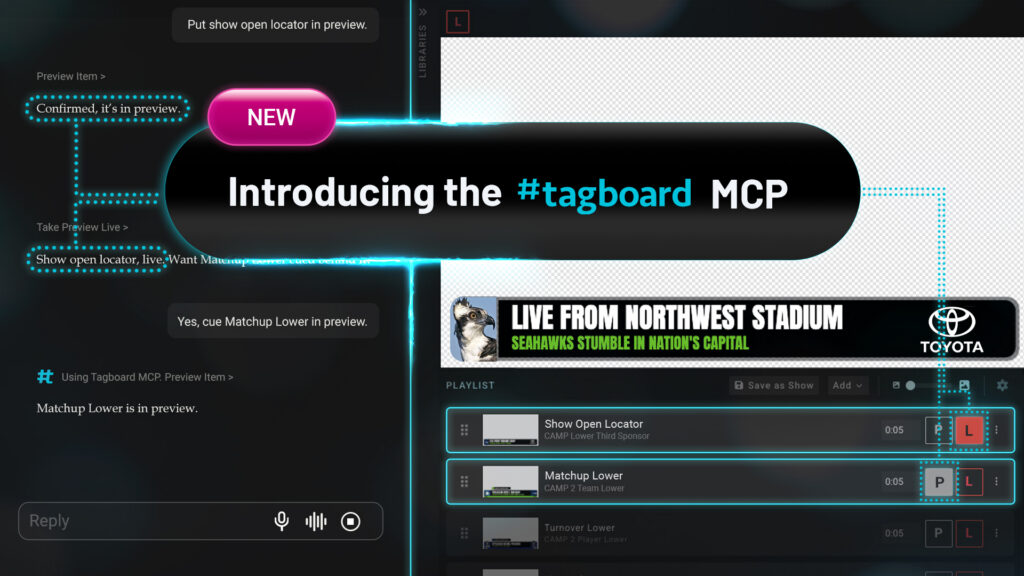
Every show has details someone has to watch, count, time, or remember. Now your AI assistant can help do that work, while you run the show.
Meet the Tagboard MCP. Building on this summer’s launch of our Tagboard Producer API, this now puts your AI assistant to work inside Tagboard Producer. Those controls are right alongside everything else your assistant can reach: your other tools, its built-in knowledge, and the data you connect to it. Combine them and one request could check a stat, read your rundown, and preview your graphic.
What is the Tagboard MCP?
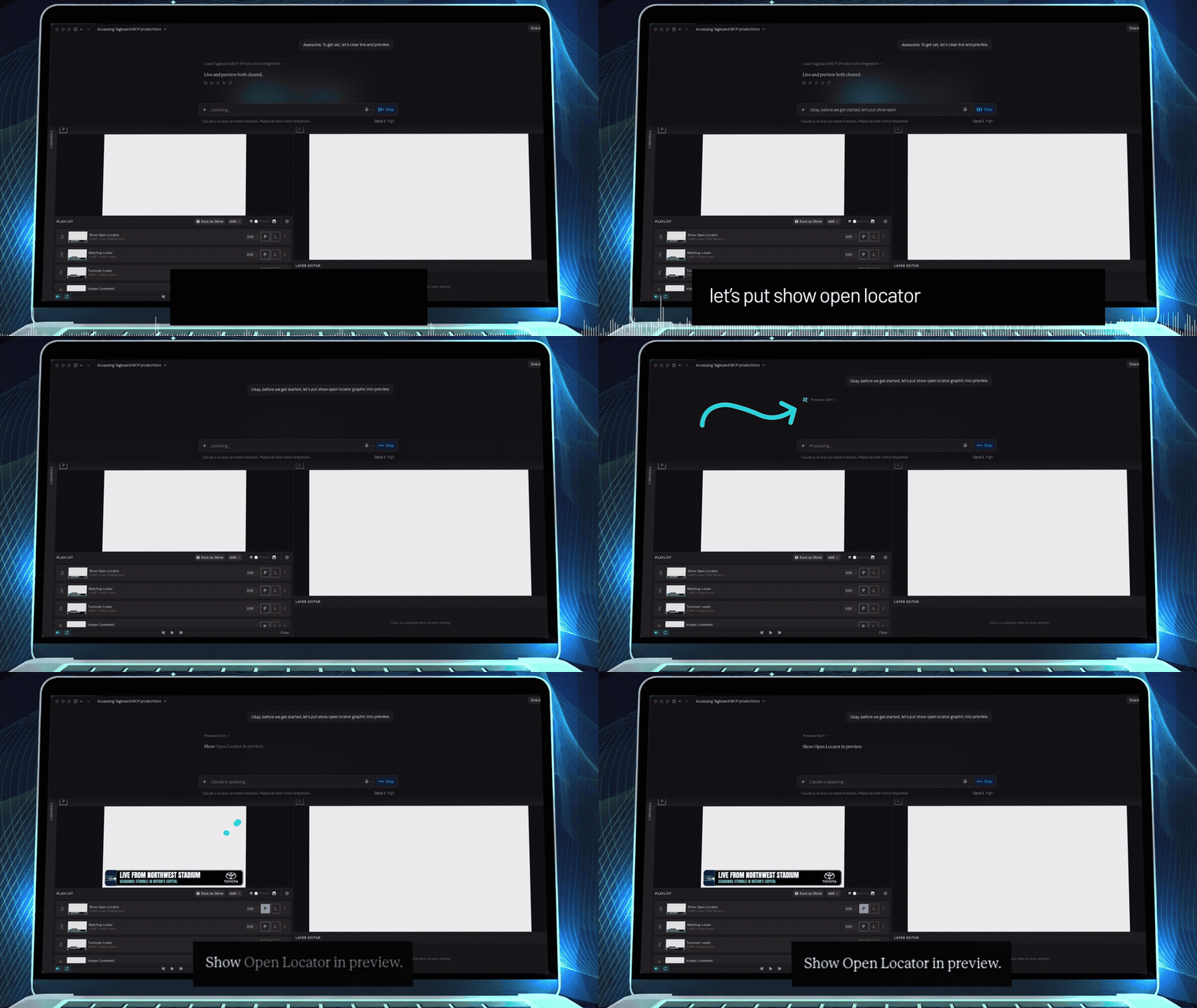
Think of the Producer API as a language. It’s powerful, but speaking it directly means learning the language and writing code. The Tagboard MCP (short for Model Context Protocol) is the translator. Connect it to your AI assistant like ChatGPT or Claude, talk in plain language, and your assistant speaks Producer for you. Once connected, you can ask about your productions and playlists. What’s in a playlist or what’s live right now? With the right permissions, your assistant can also run Producer for you: preview a graphic, take it live, clear it, play or pause the playlist, loop it, or mute the output.
None of this is Tagboard working alone. It’s Tagboard’s MCP giving your AI assistant a connection to Producer, combined with whatever else your assistant already brings: such as voice, scheduling, or the ability to read a webpage or another app.
Why it matters
Production is a lot of things at once, and graphics are one more thing to watch. The MCP takes that off your plate.
- Fewer hands needed: a small crew (or a crew of one!) can run graphics while their hands stay on the cameras, audio, and switcher.
- Nothing to map or memorize: there are no buttons to program and no key commands to remember. If you can describe what you want, you can do it.
- Works with the AI tools you already use: connect it to ChatGPT, Claude or your open model and sign in with your Tagboard login.
- You stay in control: the assistant only gets the permissions you approve, and you approve changes before anything goes on air.
Four ways to put it to work
So what does this look like in practice? Here are a few ideas to get your creative wheels spinning:
#1. Run graphics hands-free, with voice commands
“Take the scoreboard live. Clear it. Find the halftime sponsor graphic, and put it in preview. Go live.”
Directors are already used to calling out graphic cues in the control room. Now, you can turn on voice chat wherever your AI assistant supports it, and talk your way through a show. You can keep your eyes on the field and your hands on the switcher, while graphics come and go on your voice command.
#2. Schedule a show to run itself
“Go live with my pregame show at 6:00pm. Loop the rundown. Clear live when the game starts at 7:05pm.”
Some shows are predictable enough that nobody needs to be at the controls. Picture a pre-game show at the stadium. The small crew is busy with doors, concessions, and the field. Now you can build the rundown in Show Builder, add it to Tagboard Producer, then tell your assistant how you want it to go live. If your assistant can run scheduled tasks, it holds the line so your crew doesn’t have to.
#3. Let your graphics react to the real world
“Watch the score of the Seahawks game. After every score change, put the scorebug live for 10 seconds, then clear it.”
Sometimes the moment to show a graphic happens outside of Tagboard. Point your agent at whatever’s open in another tab and tell it what to watch for: a score tracker, live results, or a weather alert. When something changes, it brings up the graphic you chose. Nobody has to sit and stare, waiting for the moment.
#4. Handoff a segment of your rundown, while you finalize the rest
“Go live with the first 3 graphics on my playlist, 10 seconds each. Keep looping only through those three.”
Got one segment ready to go for pregame? Now you can ask your AI Assistant to only loop through specific graphics on your playlist, until it’s time to move on. The rest of the show stays prepped and ready, so you’re free to make any last-minute tweaks to the rest of the rundown while pregame runs.
Connect it to your other tools
“Check tonight’s rundown and put the first graphic in preview.”
“Look at the sponsor sheet and take the next sponsor graphic live.”
“Watch the game feed and bring up the Lebron James graphic every time he makes a basket.”
This is where the power starts to multiply. Your assistant can work with any tool you’ve connected to it, so Tagboard becomes one piece of a bigger workflow. Depending on what you connect, such as a spreadsheet, a calendar, email, or a data source, one request can pull from several of them at once. Read the plan, run the graphics, send out the results.
Get started
Connect the Tagboard MCP to your AI assistant, sign in with your Tagboard login, and start with a simple question: list the productions on my account. We can’t wait to see the creative use cases you cook up.
Here’s the full documentation to get started. Need support? Reach out to your dedicated Client Success Manager, or contact success@tagboard.com.